Build Agent Teams
In AI Refinery® Studio, a team (also called a project in the SDK) is a collection of agents that work together to accomplish a specific task or workflow. Teams allow you to group and organize agents so they can collaborate, share context, and deliver more powerful outcomes than a single agent working alone.
Create a Team
Creating a team is the first step in structuring how agents will work together. You can create a new, blank team inside an existing workspace within your organization. This team serves as a container for agents, where you can add, configure, and manage them to work together effectively.
Your workspace shows all the teams you've created. Use the + New Team button to start a new one.
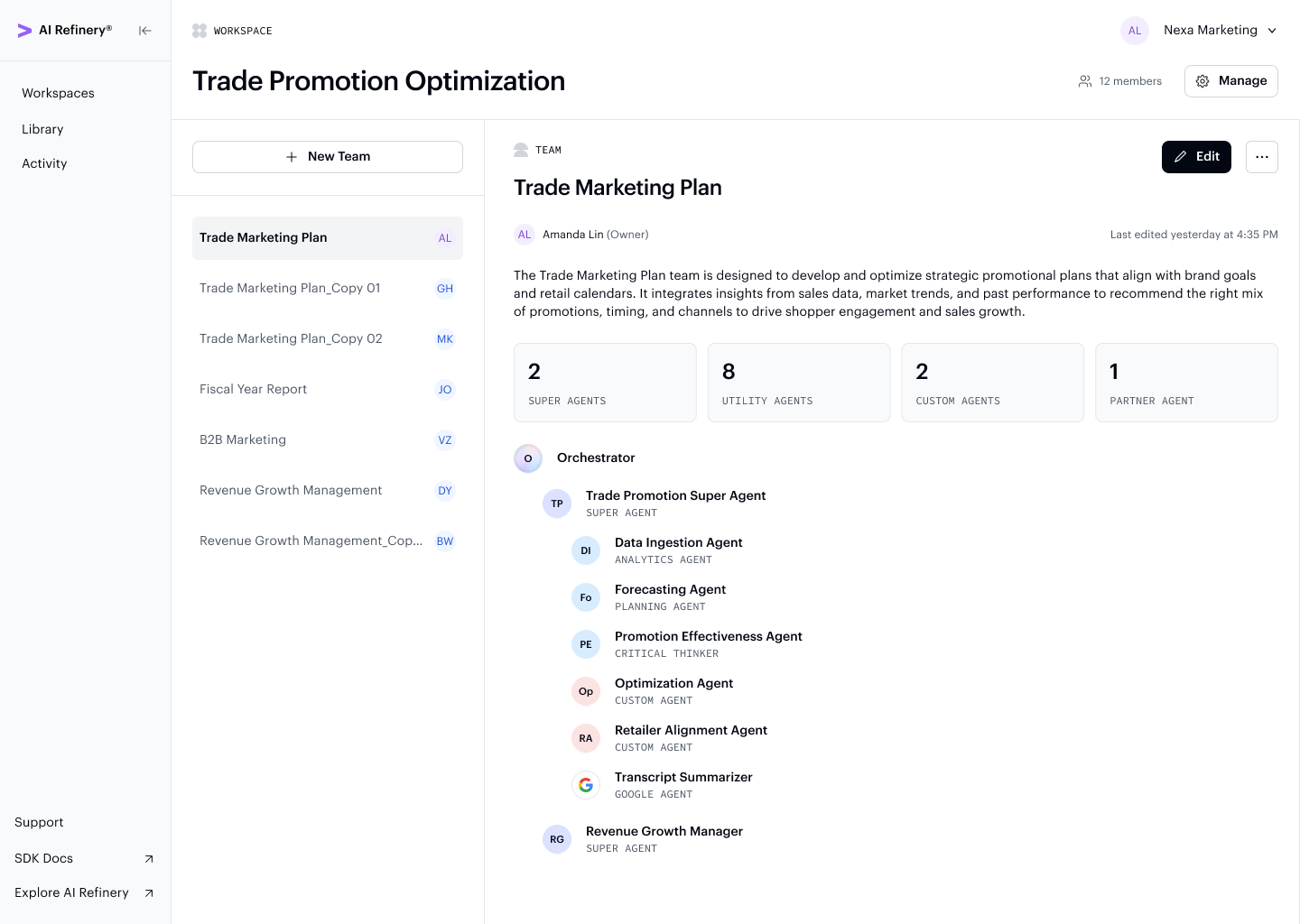
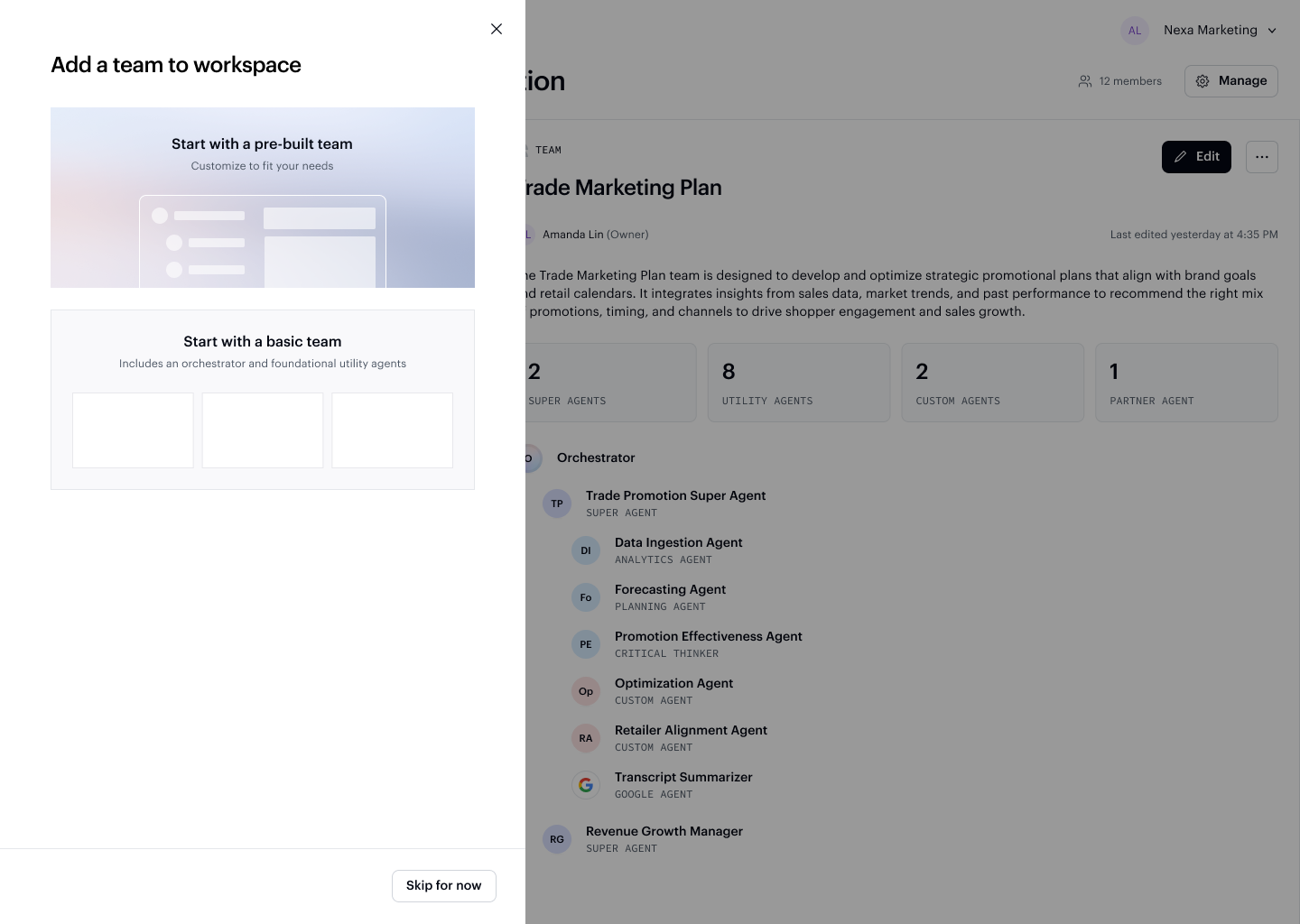
The New team dialog gives you the option to start from a pre-built team in the Library or begin with a blank team you configure from scratch.
Add Agents to a Team
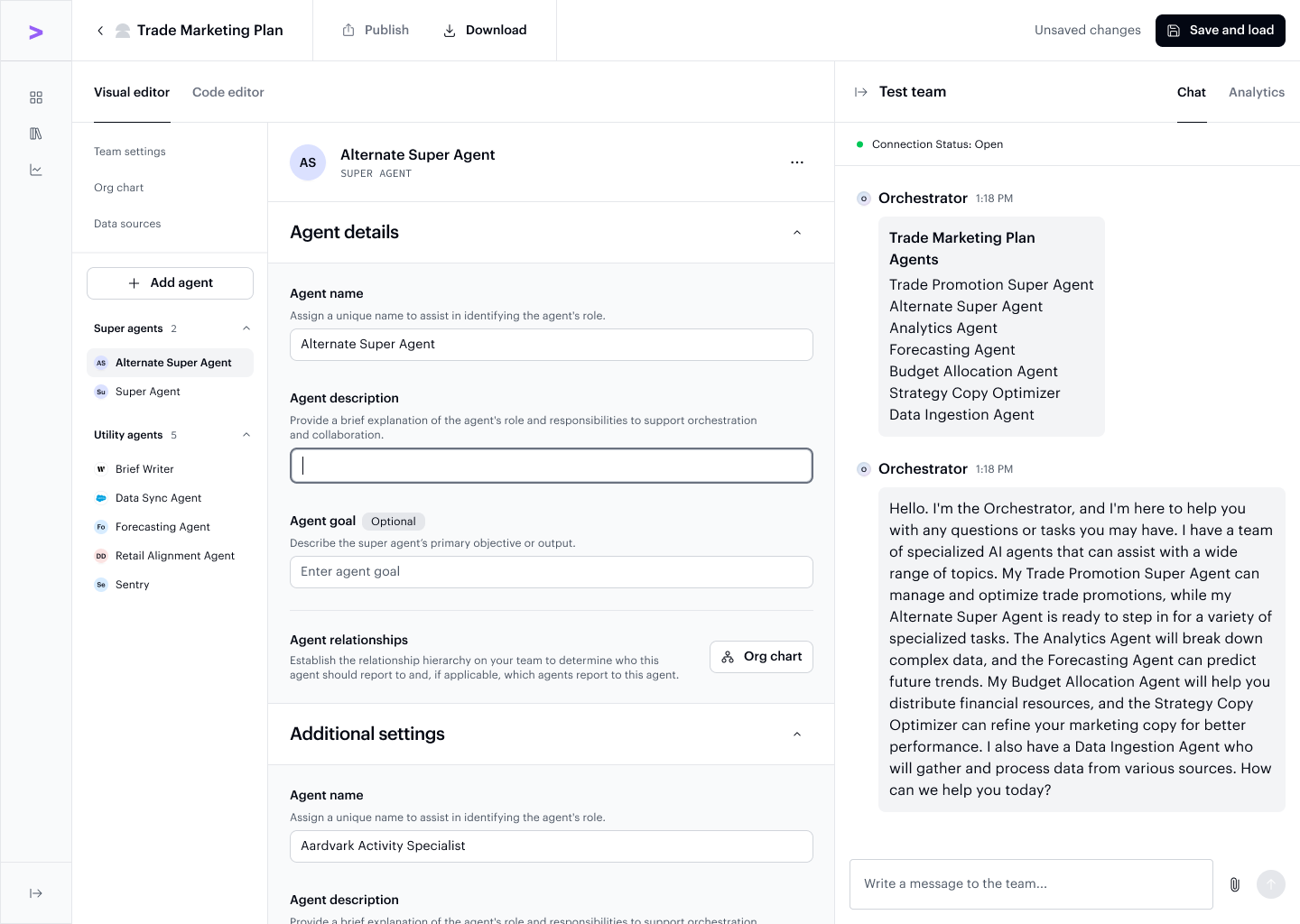
Once a team is created, you'll land on the team view where you can see the team's current configuration and agent list. Use the + Add agent button on the left panel to start building out your team.
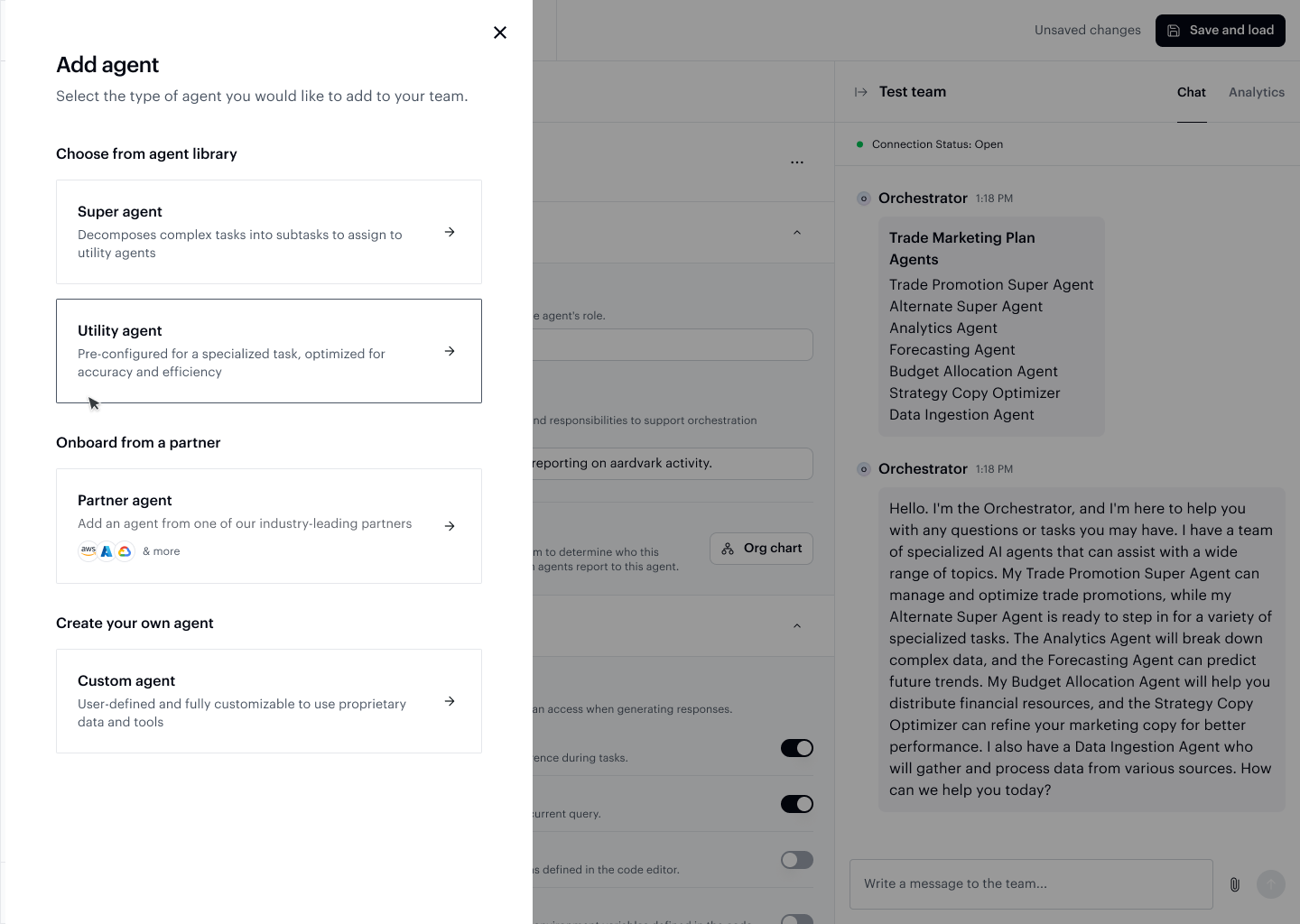
The Add agent dialog lets you select the type of agent to add — choosing from super agents, utility agents, or a custom agent.
Each agent can be configured within the team to define its:
- Role — What the agent is responsible for
- Behavior — How the agent responds and processes inputs
- Relationships — How the agent interacts and collaborates with other agents in the team
Once agents are added, the Visual Editor shows your full team configuration alongside a live test panel where you can immediately try out the team.
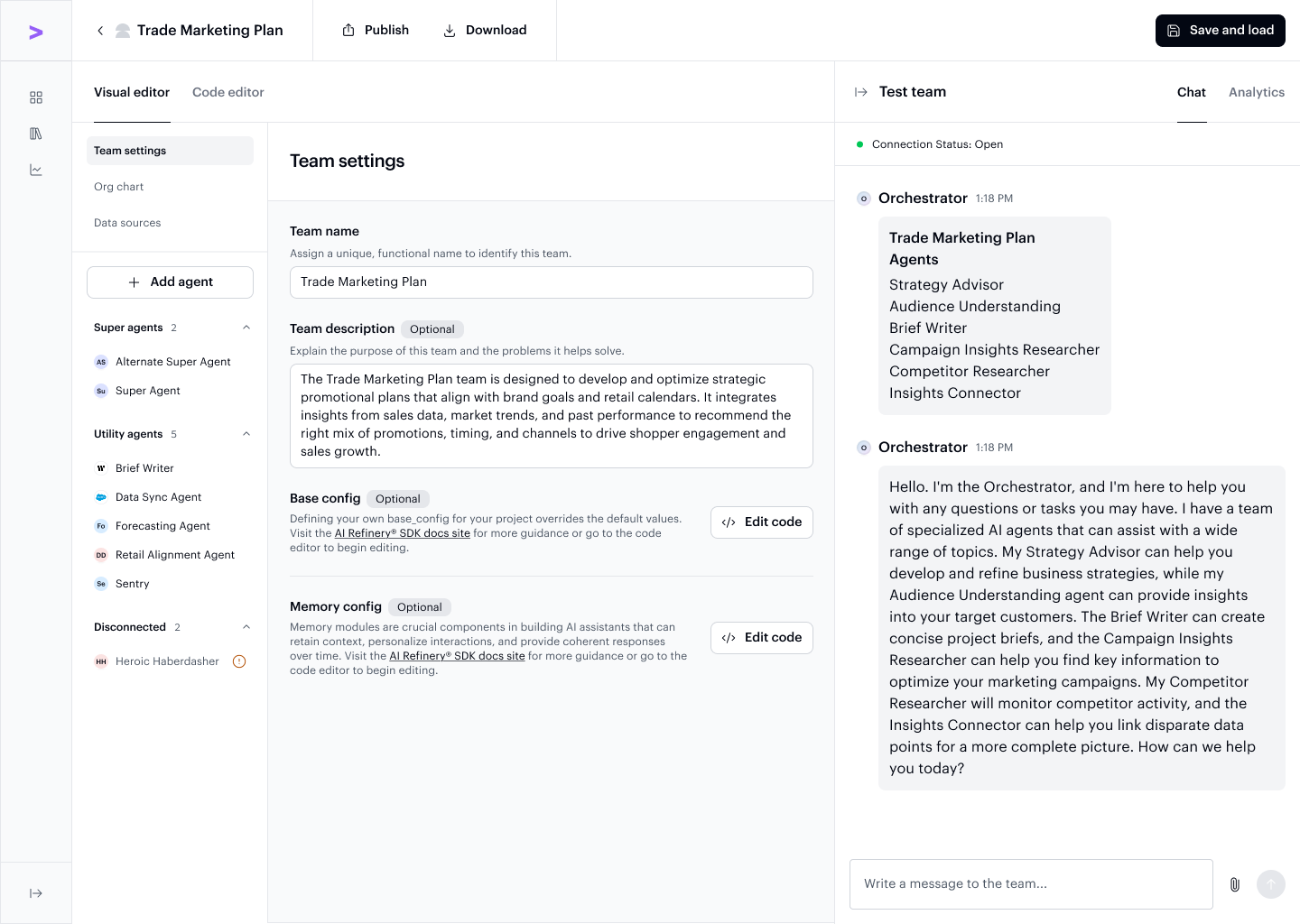
This allows you to customize the team's workflow to meet your specific needs.
Next step
After building your team, use the Visual or Code Editor to fine-tune each agent's configuration.