Admin Role & Permissions
Roles and permissions define what a user can do and see within AI Refinery® Studio. The Admin and Member roles come with a specific set of permissions designed to support different levels of access and responsibility.
This section outlines the full range of admin capabilities across the platform.
Add a New User
- Navigate to Admin Settings from the global navigation panel.
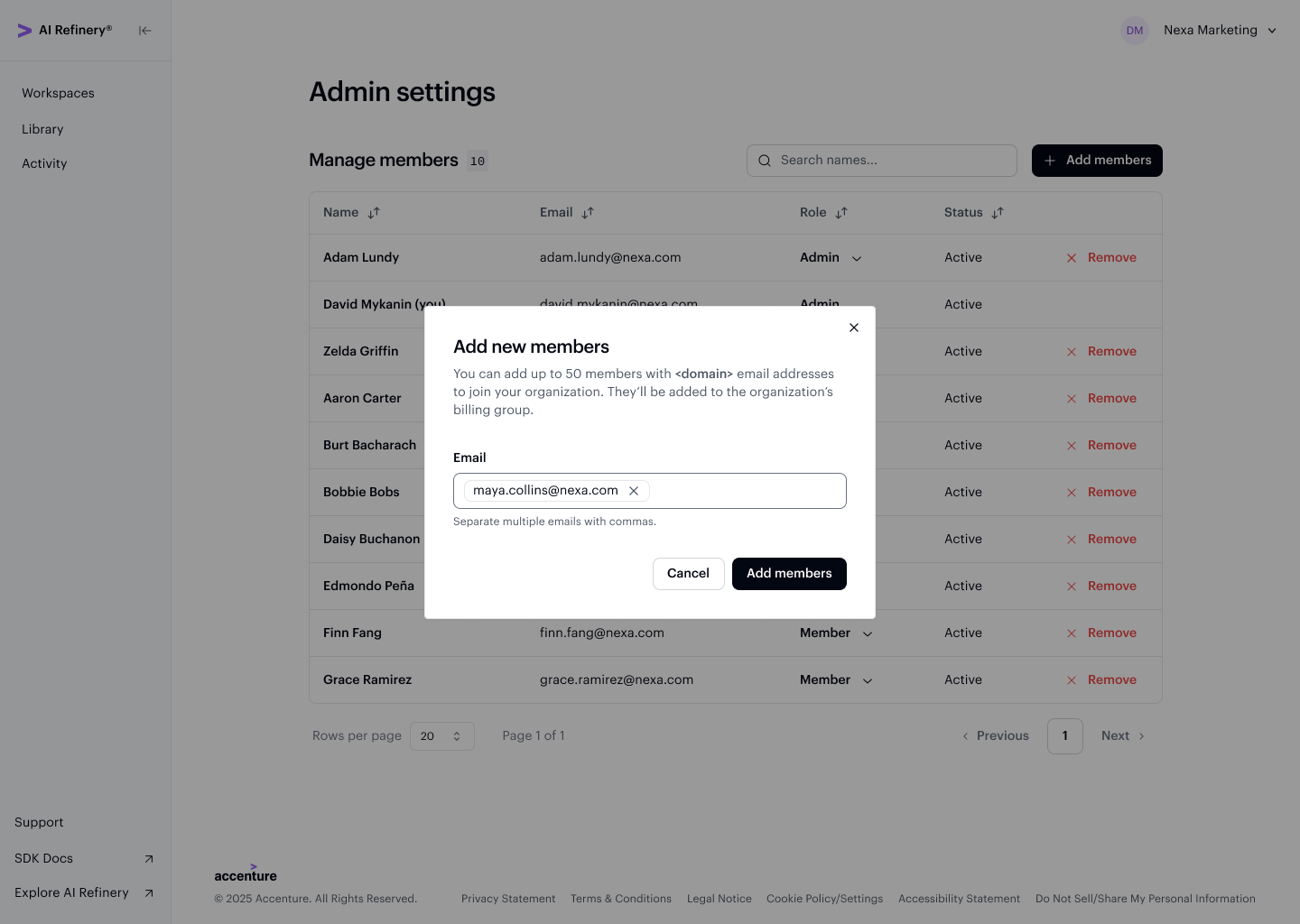
- Under Manage members, add your team members' domain email addresses. You can add up to 50 members at one time.
- Your member list will update to show users that are pending access to Studio.
- Once invited, team members will receive an email invitation with a link to access the Studio.
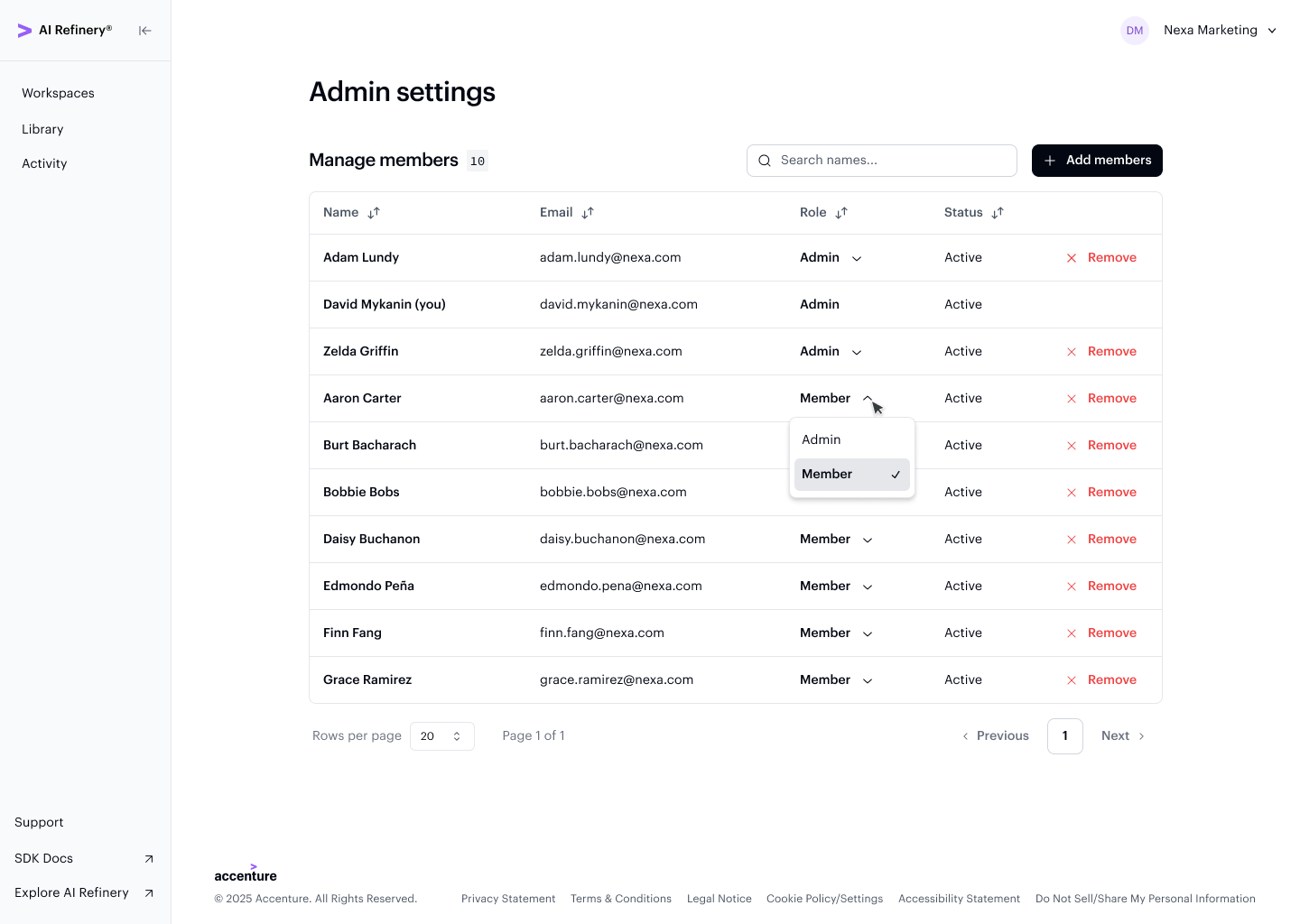
The Manage members table shows all users in your organization, their roles, and their current status.
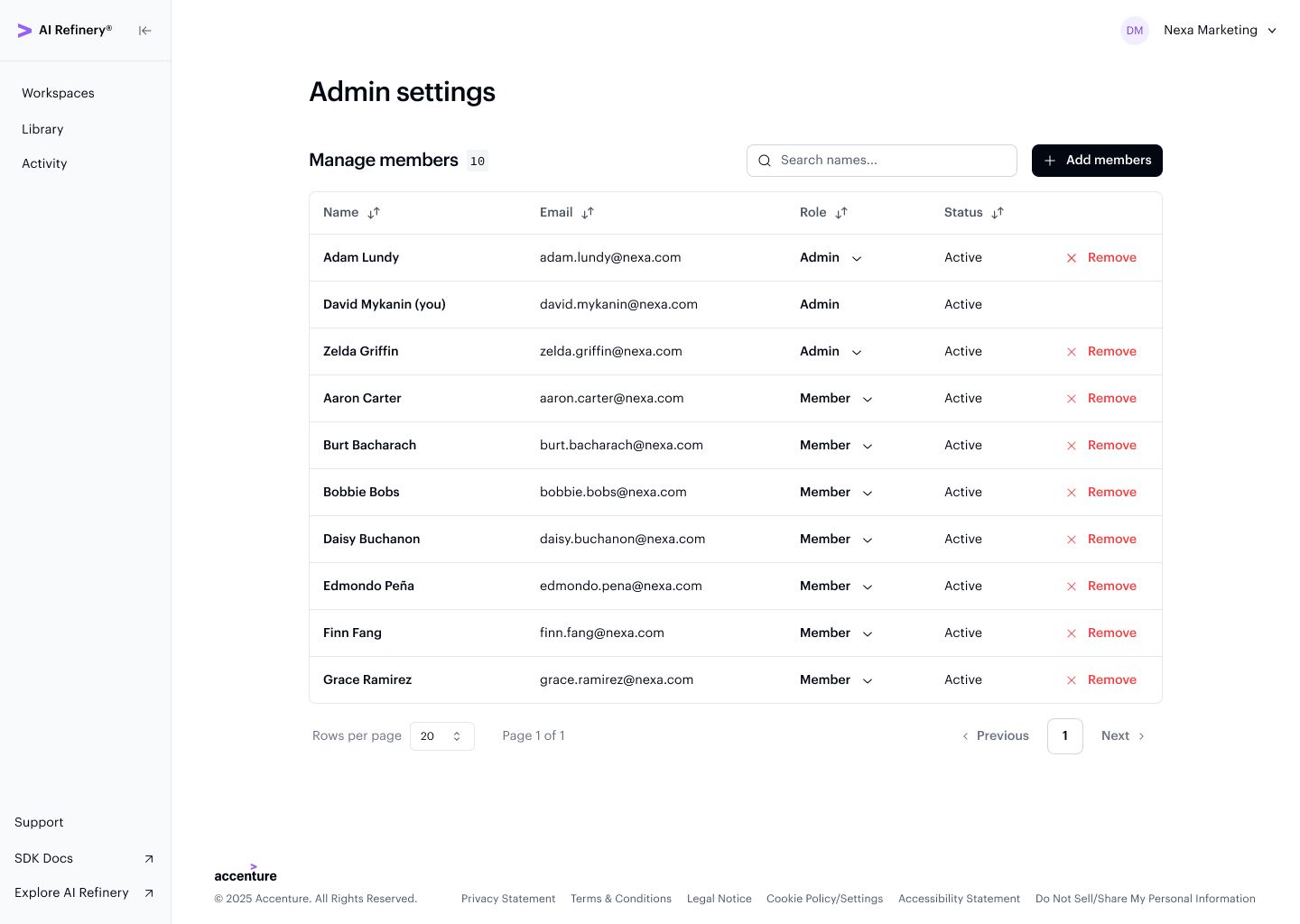
To add users, click Add members and enter domain email addresses in the dialog.
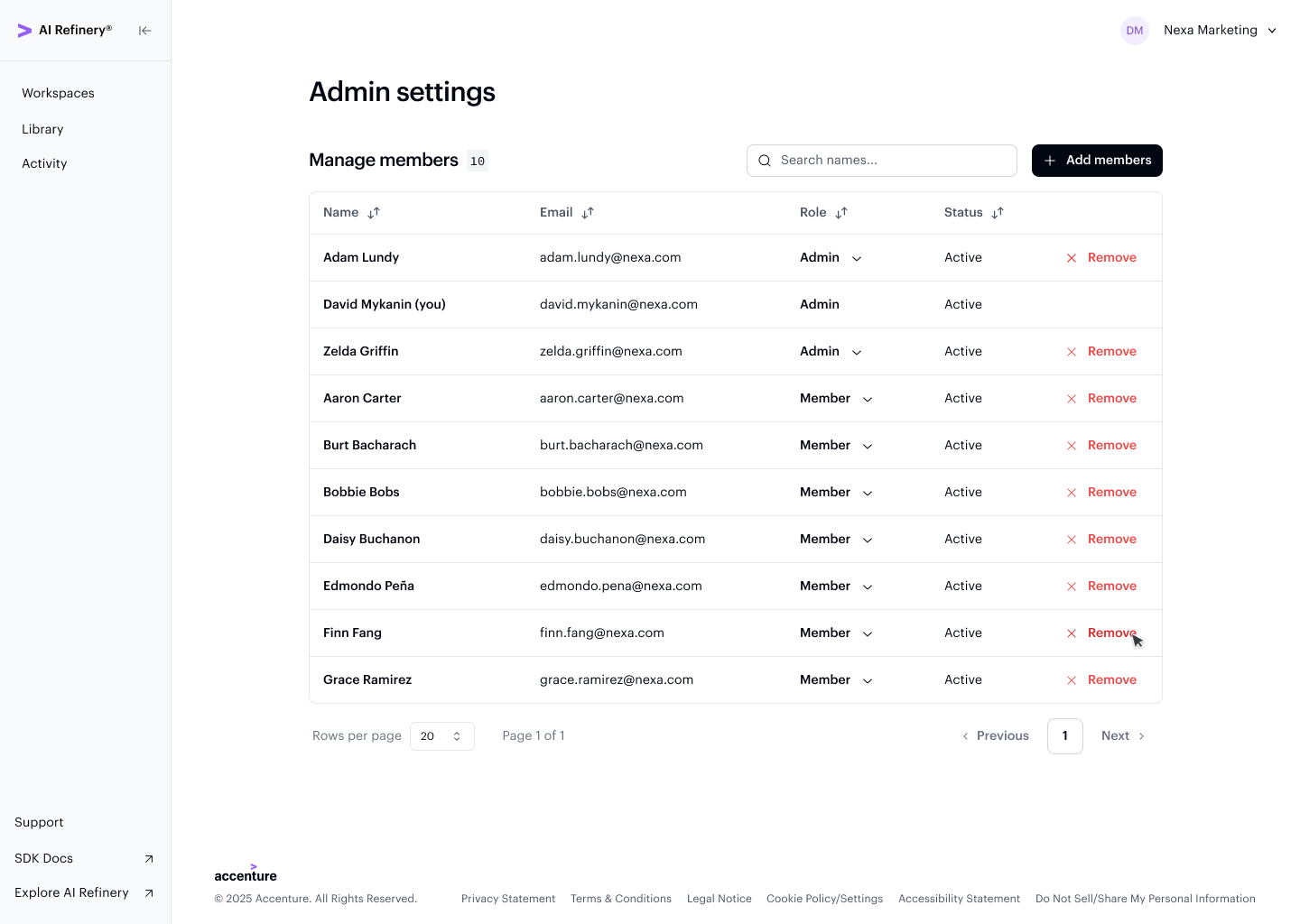
Remove a User
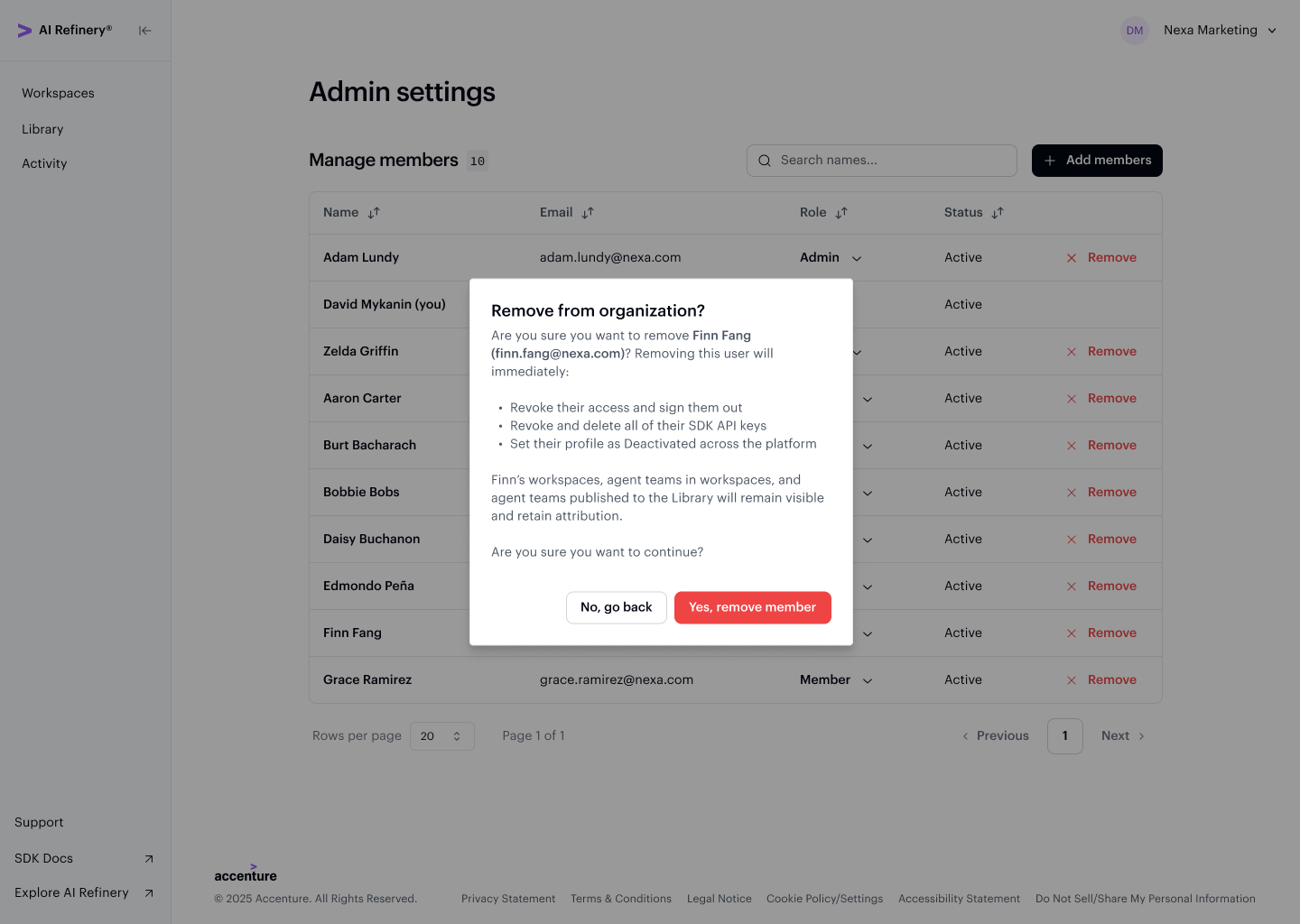
When an Admin removes a member from the organization, the member is deactivated and immediately loses access to the Studio platform, including all workspaces and teams.
What happens when a member is deactivated:
- Access removed — The member is no longer listed under your organization's users and cannot log in to Studio.
- API keys revoked — Any API keys they created are automatically deactivated and removed.
- Workspaces and teams remain active — Content created by the member continues to exist in the organization. Ownership is retained but marked as "Owner, deactivated".
- Admin controls — Only Admins can delete workspaces and teams that belong to deactivated members.
Use the Remove action on a member's row to initiate deactivation.
A confirmation dialog summarizes the consequences of removing the member before the action is applied.
Change User Roles
Admins oversee the roles of users within their organization and can change a user's role at any time:
- Promote Member users to Admin
- Demote Admin users to Member
Use the Role dropdown on any member's row to change their role.
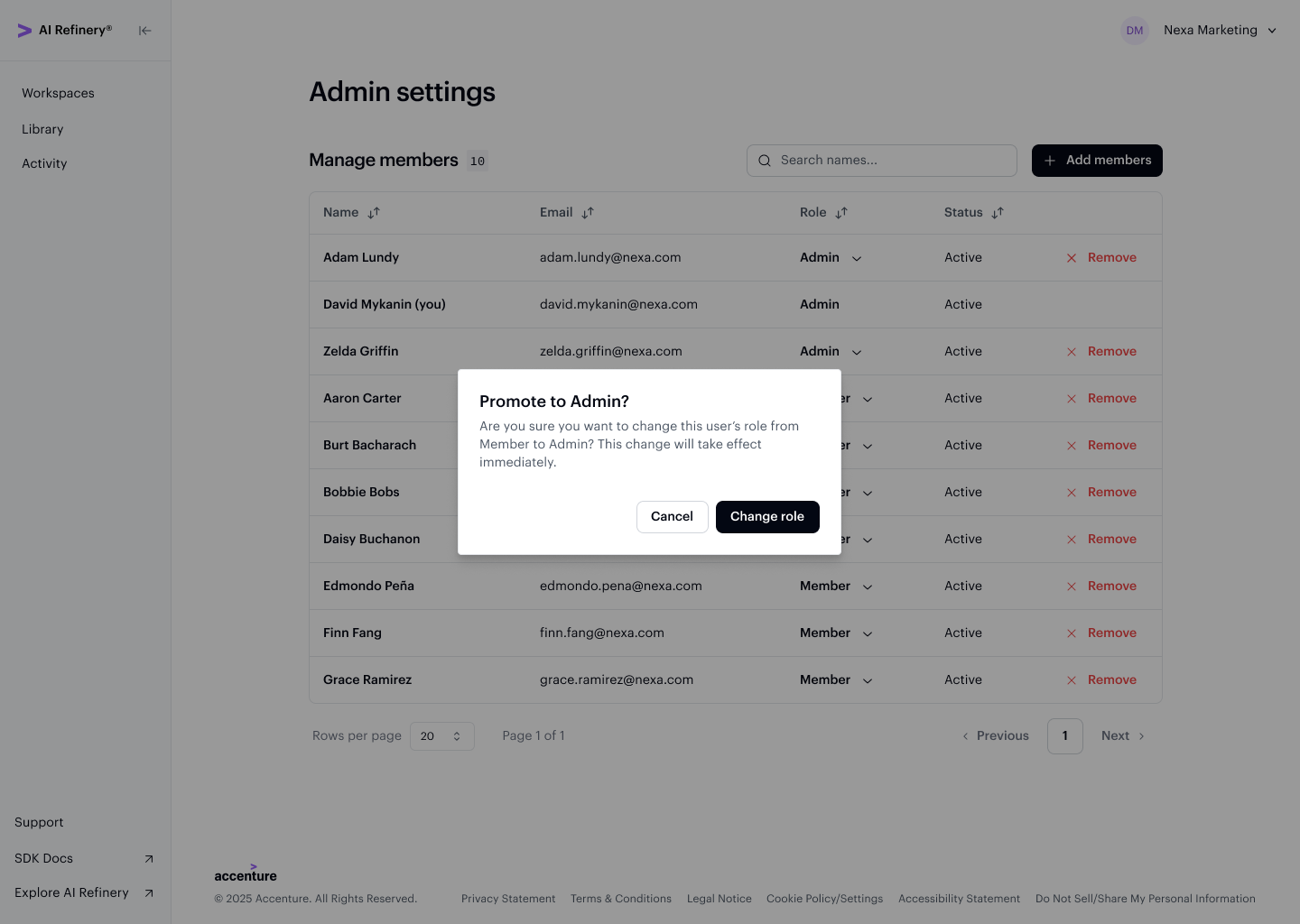
A confirmation dialog appears when promoting a member to Admin, as the change grants full administrative privileges.
Manage Workspaces
Admins oversee workspace management to ensure teams are structured effectively within their organization. Admins can:
- Create new workspaces
- View and access all public and private workspaces in the organization
- Reassign ownership of any workspace
- Manage workspace details including adding or removing users
- Delete workspaces or teams created by deactivated users
The From your organization tab in Workspaces gives Admins a view of every workspace across the org.
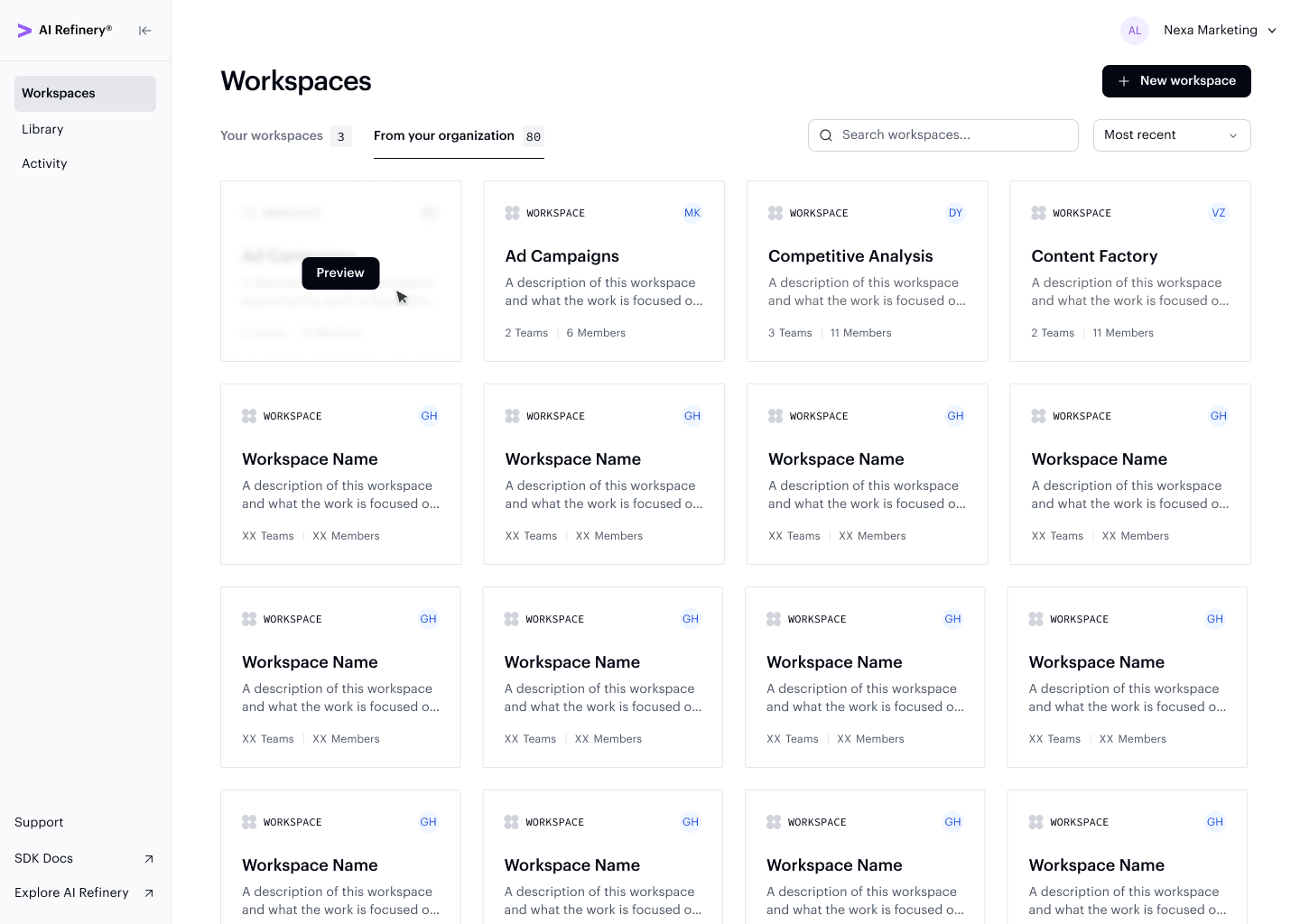
Clicking into a workspace opens the workspace overview, where you can see all the agent teams (projects) within it along with additional details about each one.
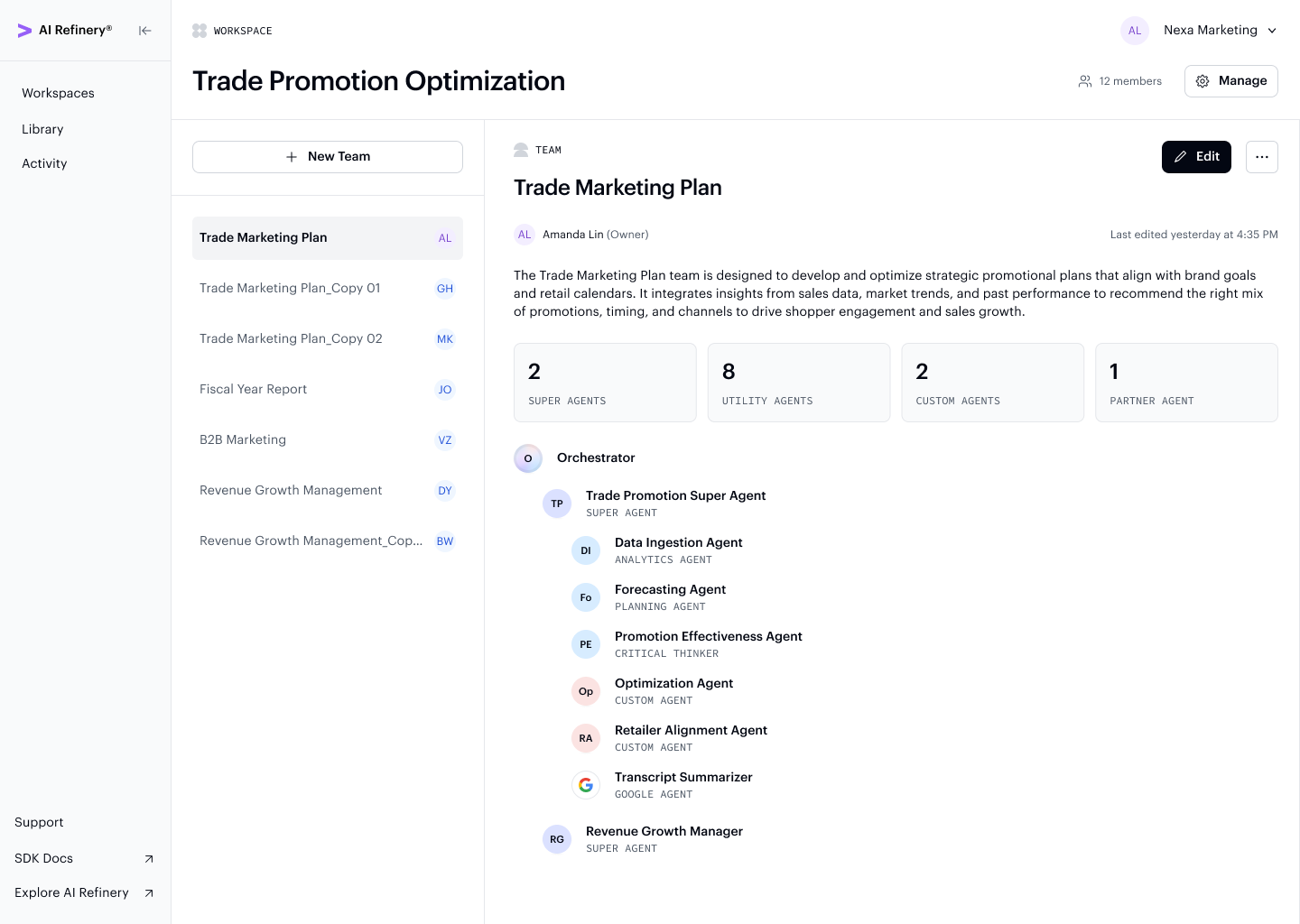
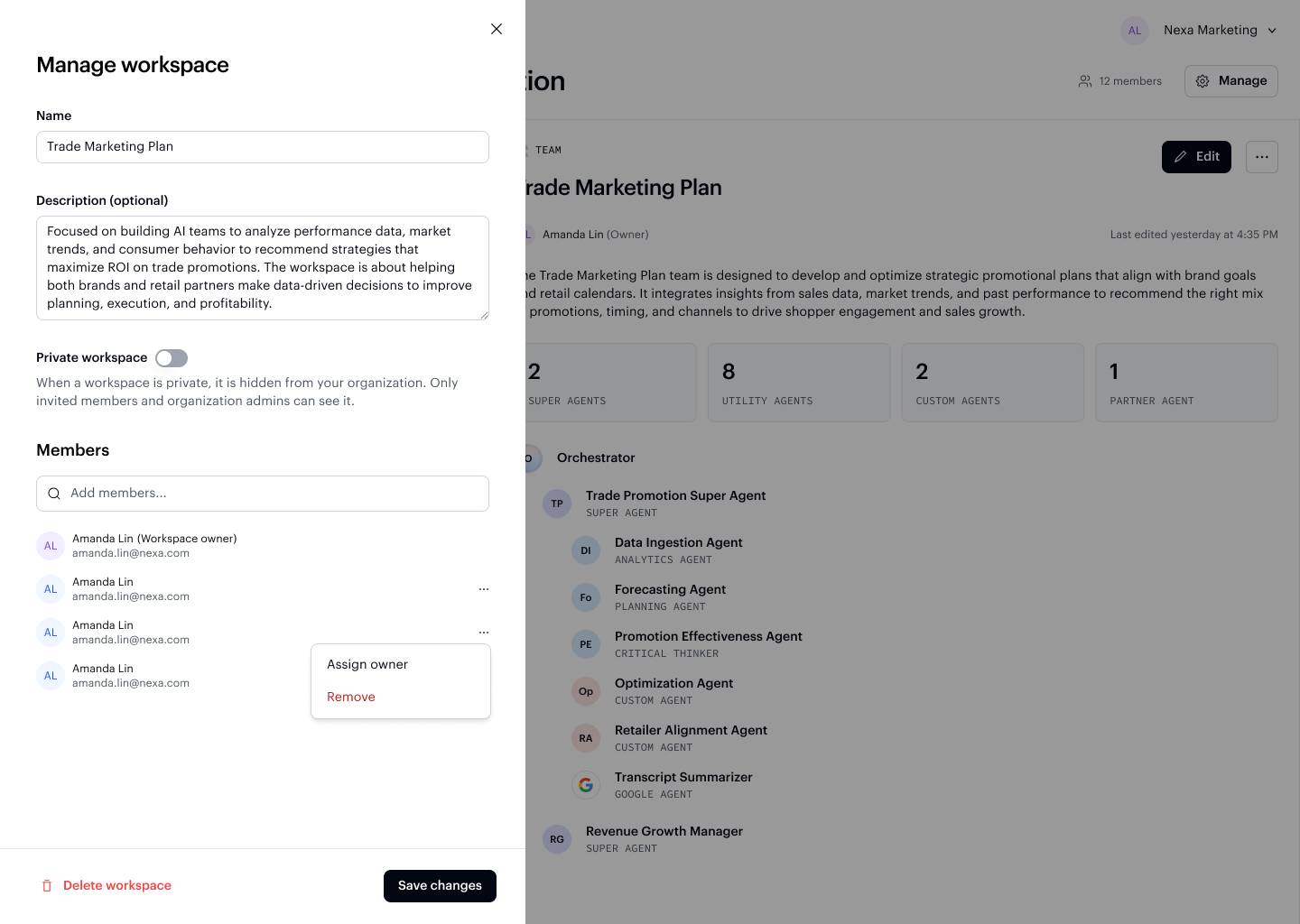
Clicking the Manage button in the top right of the workspace overview opens the manage workspace side panel, where Admins can edit the name, description, privacy setting, and member list.
Manage Library Content
The library is where agent teams (projects) are published and shared across the organization. Admins control what appears in the library:
- Publish agent teams to the library
- Remove teams from the library published by members of your organization
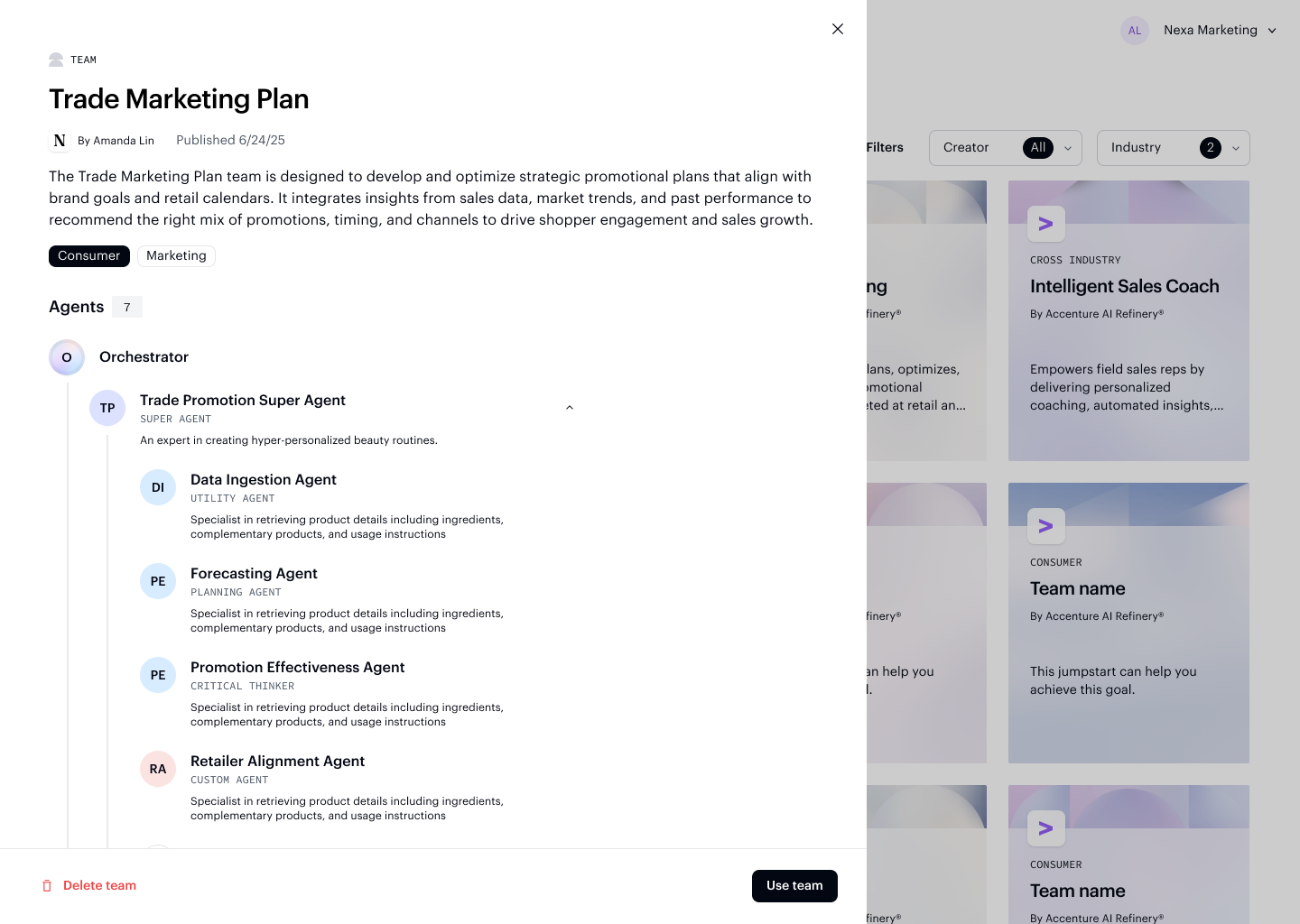
Admins can open any team in the library and access its detail card to manage or remove it.
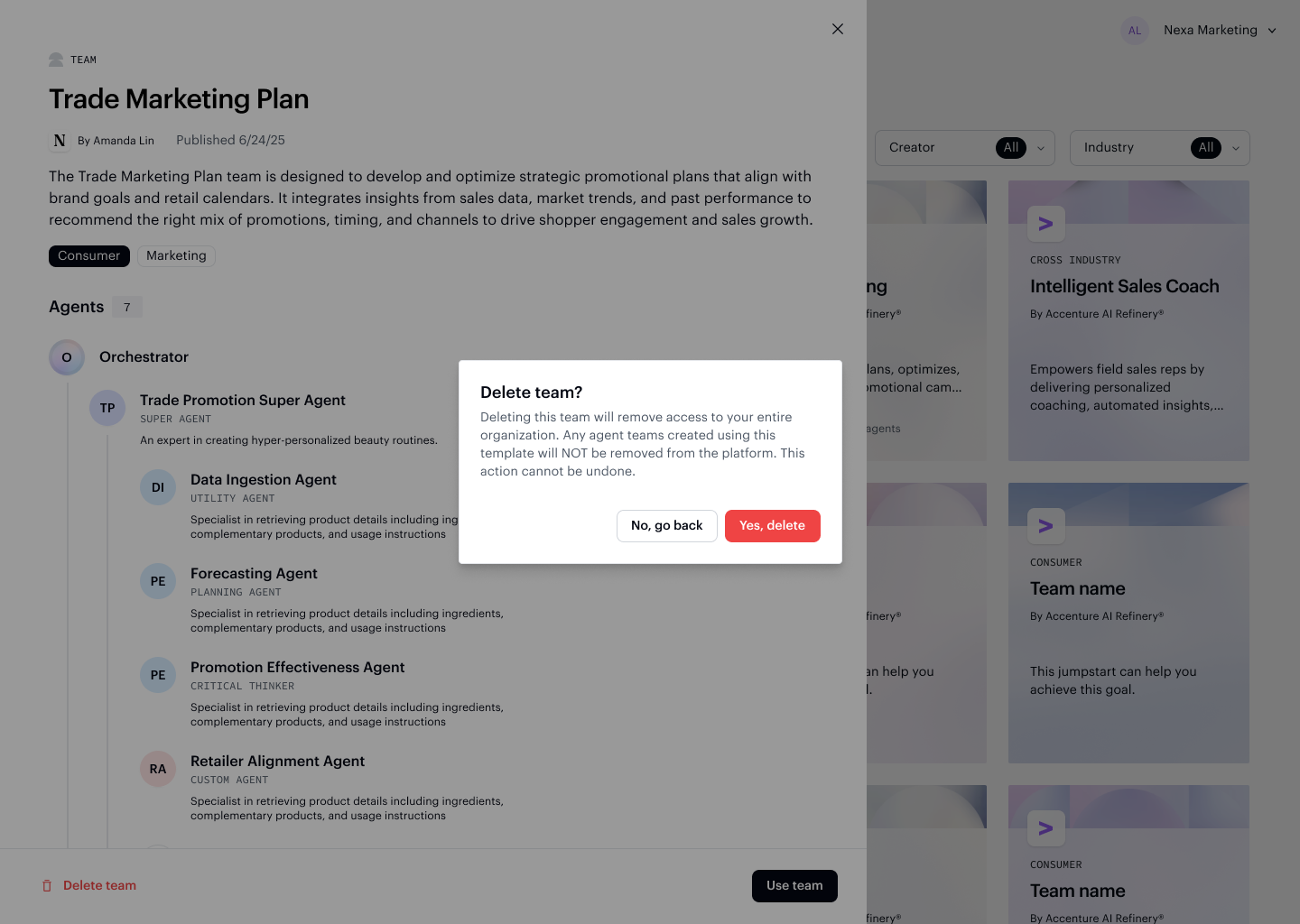
Removing a team from the library prompts a confirmation to prevent accidental deletion.
View Organization API Keys
Admins have visibility into API keys across their organization:
- Generate and manage their personal API keys
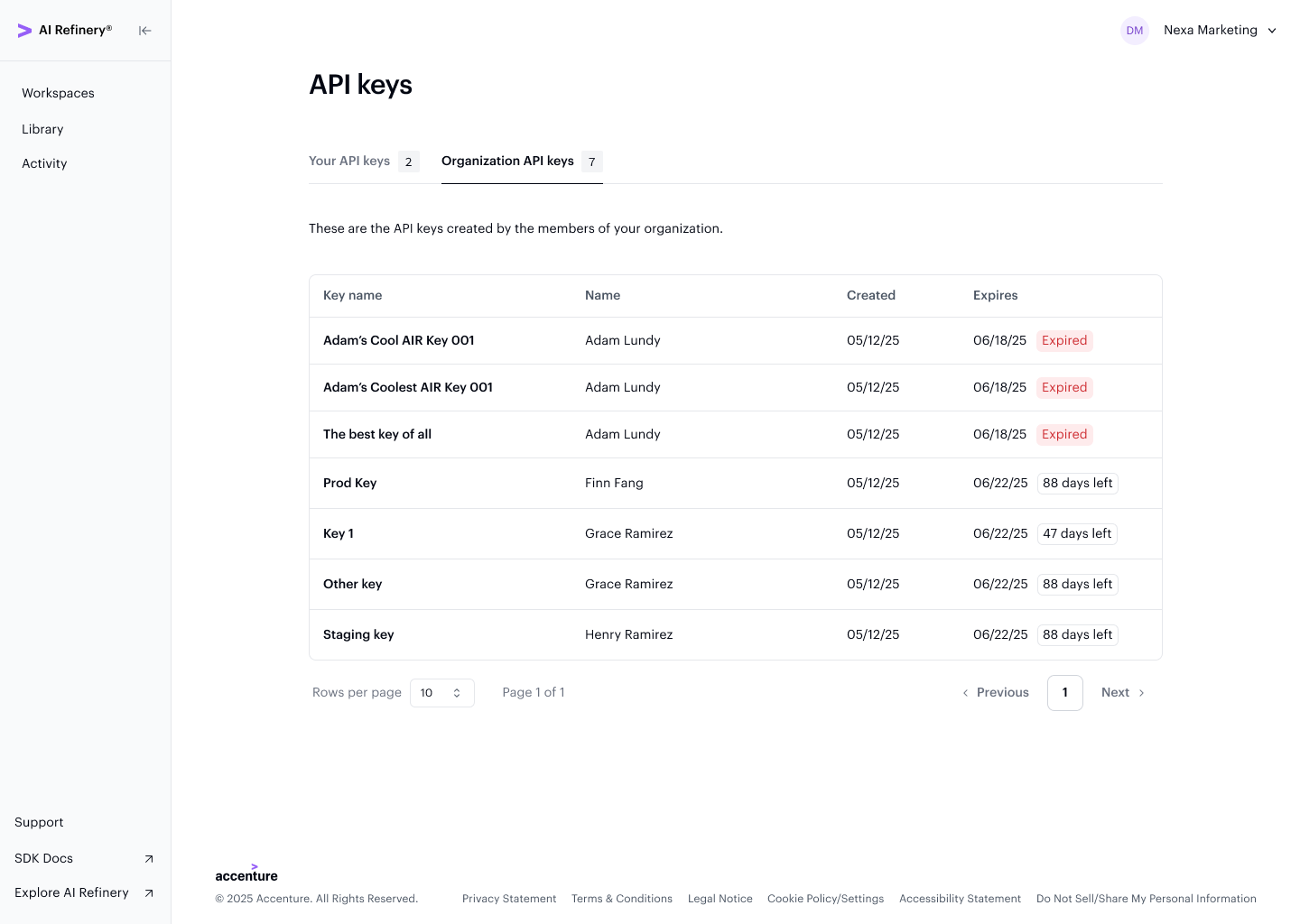
- View all API keys in the organization
The Org-wide API keys tab shows all keys created by members, including their expiry status and permissions.
Monitor Organization Activity
The Activity Dashboard provides insights into platform usage and agent performance across your organization. Admins see an expanded view representing aggregate data across all workspaces, including:
- Total number of workspaces
- Total number of agent teams and published teams
- Total members in the organization
- Organization-wide token usage across models and agent classes
The dashboard displays three panels: an organization summary, performance metrics, and per-agent activity — all filterable by workspace, team, and time range.
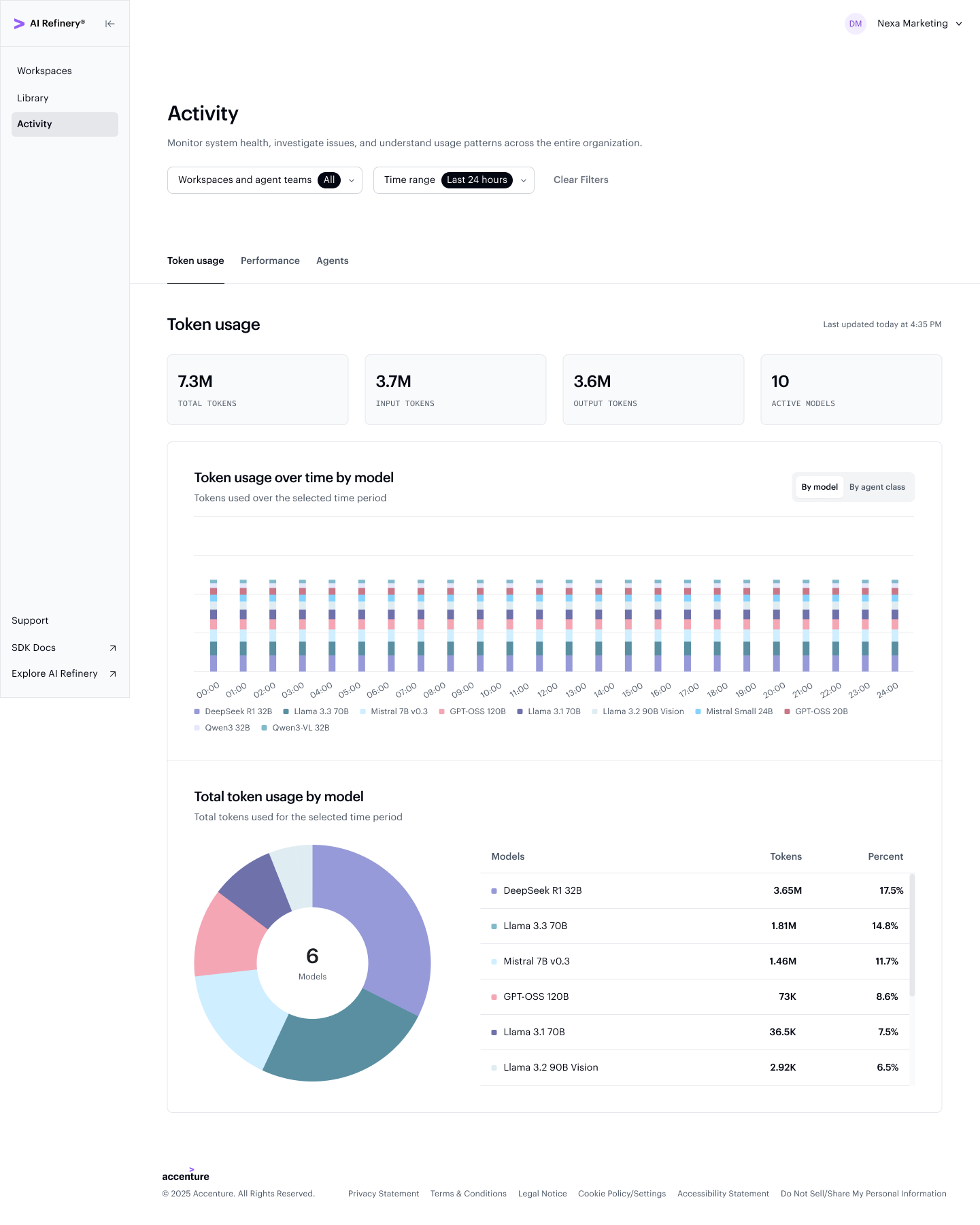
The organization summary gives you a high-level count of workspaces, agent teams (including published ones), and active members, plus a breakdown of token usage across models and agent classes.
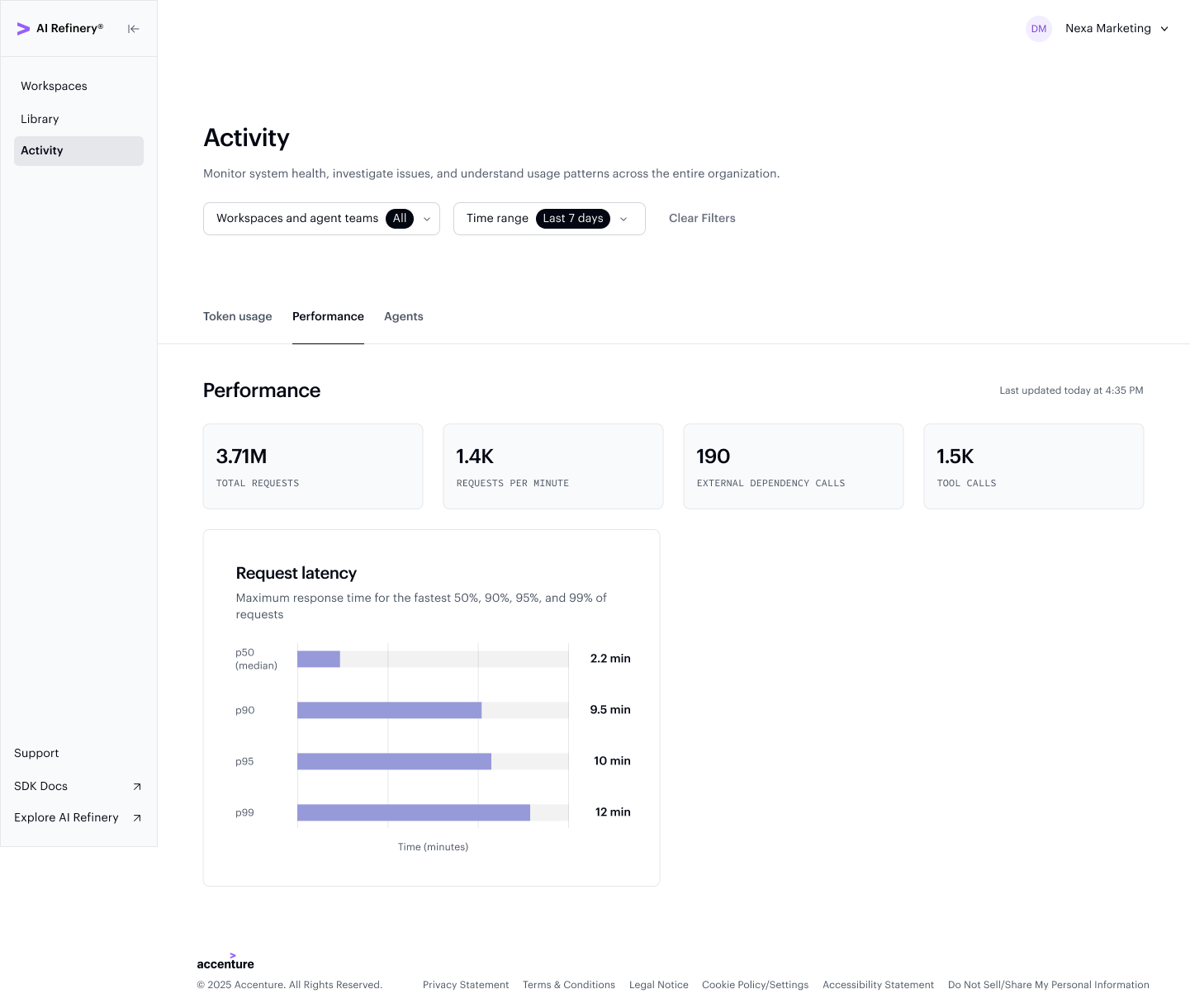
The performance metrics panel lets you monitor response latency, request volume over time, and downstream dependency calls — useful for diagnosing bottlenecks across your organization.
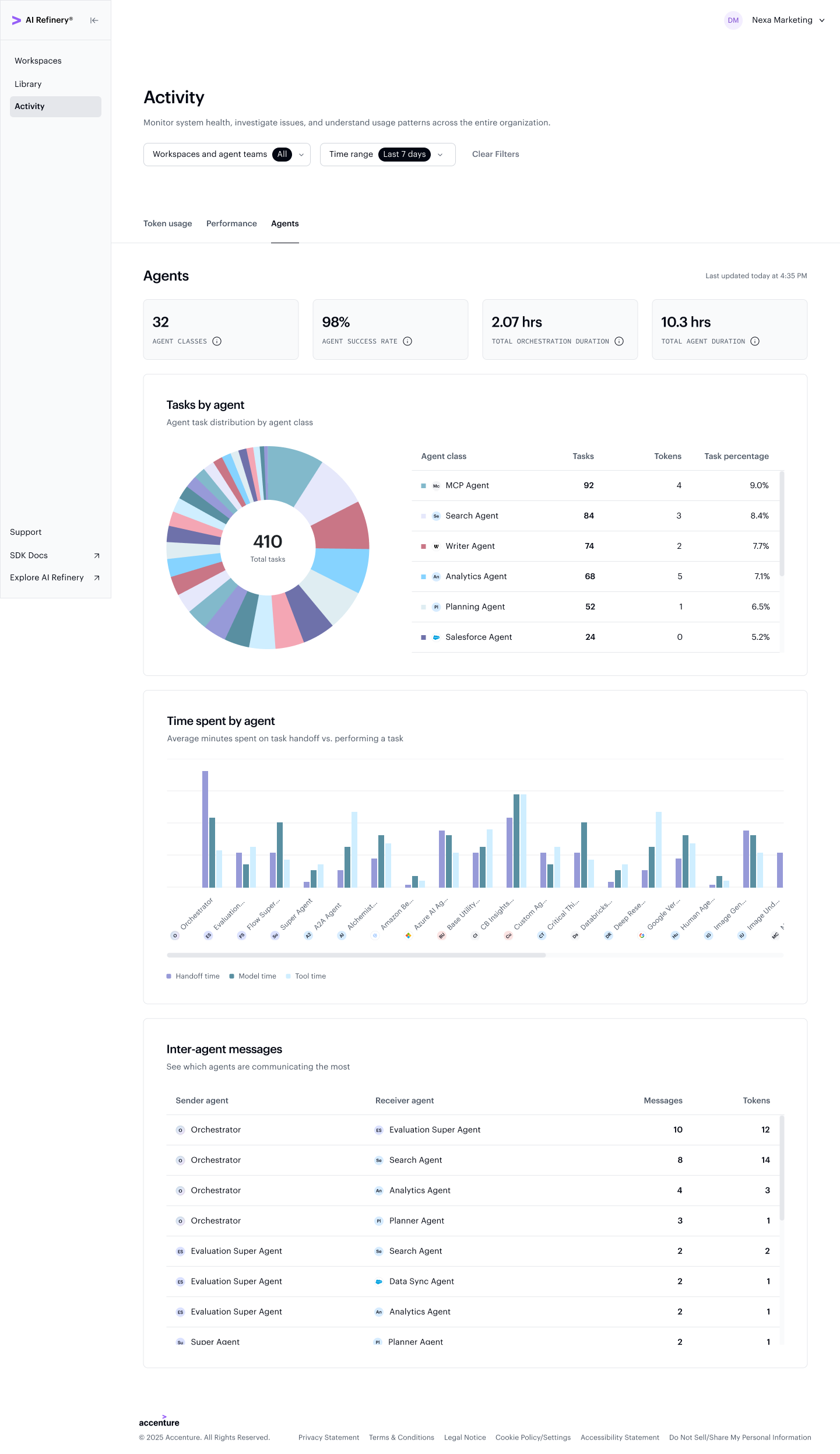
The agent activity panel drills into individual agent behavior, showing success rates, orchestration time, agent runtime, collaboration patterns, and total token costs per agent.
Manage Models
Admins can manage private models registered in your organization's model registry — including adding, updating, and removing models available to your team.
For the full model catalog available to your organization, see the Model Catalog.
Programmatic administration
All admin operations available in Studio — managing users, roles, workspaces, agent teams (projects), API keys, and models — are also available programmatically via the Governance API. Use it to automate provisioning, integrate with your own tooling, or manage your organization at scale.